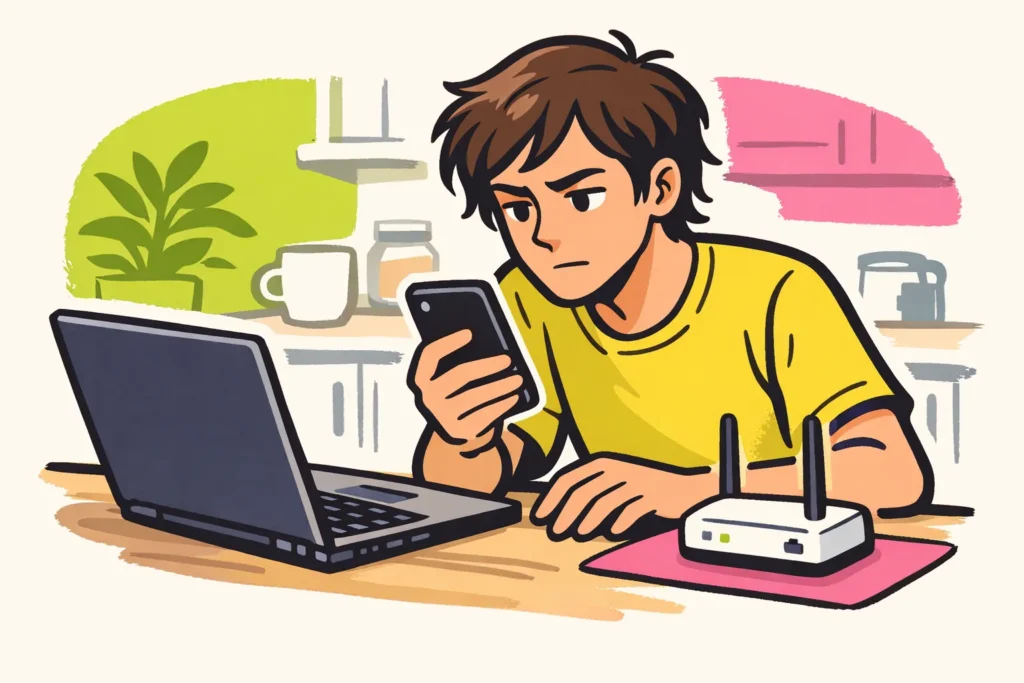
Instagram sometimes doesn’t work because of an outage, poor internet, a frozen app, or a problem with your account. First, open another website. Then try Instagram over Wi Fi and mobile data. Is Instagram the only thing that isn’t working? Open it in your browser too. These tests give you an initial clue about where the problem lies.
Choose what you see on your screen below and follow the steps that apply.
Why isn’t Instagram working for you?
Test one thing at a time. If you delete the app while also changing your password and restarting your router, you won’t know afterwards what helped.
Find what you’re experiencing in the table. The possible cause is a clue, not a certainty.
| What are you noticing? | What could be causing it? | What do you test first? |
|---|---|---|
| Other websites won’t load either. | Your internet connection. | Switch between Wi Fi and mobile data. |
| Instagram works over mobile data, but not over Wi Fi. | Your Wi Fi network or a filter blocking traffic. | Try another trusted network. |
| Instagram works in the browser, but not in the app. | The app or something on your phone. | Close the app completely and reopen it. |
| Several people on different networks are having problems at the same time. | A broader outage. | Compare what is going wrong and when it started. |
| Your account doesn’t work anywhere, but another account does. | A login problem or a restriction on your account. | Read the message shown on your own account. |
Does an account still work on your phone? Leave it logged in. You don’t need to log out to perform the other tests.
Checking for an Instagram outage in the Netherlands or Belgium
To find out whether Instagram is experiencing an outage today, you need to check current reports. This article doesn’t show live status.
- Ask someone on another network. Someone on the same Wi Fi isn’t a good comparison. For example, ask whether a friend can open messages over mobile data.
- Ask them to try the same thing. Can’t you open a story yourself? Ask whether the other person can. Simply opening the app doesn’t tell you much.
- Check recent outage reports. Pay attention to the time and region. Old reports tell you nothing about the problem you’re having now.
Many reports at once may point to an outage. They don’t prove that the whole of the Netherlands or Belgium is affected. Sometimes only one feature doesn’t work.
Are others on different networks experiencing the same problem? Wait a little and try again later. Deleting the app isn’t a logical first step in that situation.
Instagram won’t open or crashes on iPhone or Android
Does Instagram close immediately when you open the app? Close the app completely first and reopen it. If that doesn’t help, follow the steps for your phone. Check after each step whether Instagram is working again.
On your iPhone
- Close Instagram completely. Simply returning to your home screen isn’t enough.
- Restart your iPhone.
- Check the App Store for an Instagram update.
- Check whether your phone shows a system update or a warning about full storage.
Is your storage full? Free up space by deleting files you no longer need. Save important photos and videos somewhere else first.
On your Android phone
In the Google’s guidance about apps that aren’t working these steps are listed: restarting, checking for updates, force stopping, and clearing the cache or data.
Start by restarting and checking for updates. Then look for Instagram in your phone’s settings. There, you can see which options are available for stopping the app or clearing temporary storage. The names and options vary by device.
Cache means temporary storage. Clearing data is a more drastic step: you may lose local data, meaning data stored on your phone. Leave this until later and read the warning before confirming anything. First check that you know your password and have access to your login codes.
Test Instagram in your browser
Open Instagram directly in your browser, not through a link from an unexpected message. Does it work there? You can then use the browser version temporarily for the features available there.
Does only the browser not work? Try another browser. Do you use an extension, an additional browser tool, that blocks pages? Temporarily turn it off for this test and then turn it back on.
When should you reinstall the app?
Only try this if the earlier steps don’t help. First check that you can use your password and login codes. Also save photos, videos, and texts that you haven’t posted yet.
If you delete the app, you may lose data on your phone. Reinstalling won’t fix a general outage.
Instagram feed, stories, or messages won’t load
Is part of Instagram still working? Check which feature is stuck. This lets you continue testing more precisely.
- Your feed shows only old posts. Refresh the feed and then open a profile. Do you see recent posts there? Note that only your feed, the overview of posts, is glitching.
- A story gets stuck. Open a story from another account. One story not opening doesn’t mean there is a general outage.
- A direct message remains stuck on sending. Check your connection and see whether the message appears later. Don’t immediately send the same text several times.
- A photo or video won’t post. Save the original file and your text before closing the app.
Is only a link not working? Read the explanation of an Instagram link that isn’t working. Is sound or a song missing? See what to do when Instagram music isn’t working.
Few reactions to your photo don’t automatically mean that Instagram is broken. Is the app working normally, but you’re unsure whether others can see your post? Read why your followers can’t see your Instagram posts.
If you use Instagram for your shop or work
Before trying again, check whether your post is already on your profile. This prevents you from posting it twice. Also save photos and texts outside the app.
Is someone waiting for an answer about an order? Use an existing contact channel, such as your business email address.
Can’t log in to Instagram
Read the error message first. An incorrect password calls for different steps than a message about a restricted account.
- Your password is rejected. Check your username. Do you use a password manager? Check whether it is filling in the correct account. Then use the recovery option on the official login screen.
- You don’t receive a code. Check which phone number or email address is shown on the screen, as far as you can see. Read the separate explanation if your Instagram verification code doesn’t arrive.
- You see a restriction or suspension. Follow the explanation in the message. A different connection or clearing temporary storage won’t remove an account restriction.
- You see changes you didn’t make yourself. Use the official help to recover your account. Also secure the email account linked to Instagram.
Are you still logged in on another device? Don’t simply log out there. You can use that access to read messages and check your contact details.
How to safely report an Instagram problem
Can you still use the app? Look for help within Instagram or an option to report a problem. Can’t find it? Start with the help on the official login screen or Instagram’s official website.
Meta described in an announcement about improved account support a central help centre and a digital support assistant. This help isn’t available in the same way for every account.
In your report, write exactly what is going wrong:
- What were you trying to do and what happened?
- When did the problem start?
- Which phone and app version are you using?
- Does it happen over Wi Fi, mobile data, and in the browser?
- Which error message do you see?
A fictional example: “Since this afternoon, the app closes as soon as I open a story. My feed works. It happens over Wi Fi and mobile data. Restarting didn’t help.”
You can attach a screenshot. First obscure direct messages, phone numbers, and other sensitive data. Never share your password, login code, or recovery codes.
What not to do when Instagram is glitching
- Don’t call a support number from the comments. A phone number or reference to WhatsApp or Telegram doesn’t prove that someone works for Instagram.
- Don’t give anyone access to your screen or account. Especially if someone offers unsolicited help recovering your account.
- Don’t install an unknown recovery app. Use your phone’s official app store for updates.
- Don’t erase everything immediately. First save your files and check whether you can log in again.
- Don’t keep repeating the same unsuccessful action. Note the error message and choose another suitable test.
Can’t get any further? Look at what your tests have shown. If Instagram works on only one network, check that connection. If only the app doesn’t work, follow the steps for your phone. For an account message, use account support. If it seems like a widespread outage, test again later. If you also publish your own content, our Instagram services includes packages for followers and likes. The product pages show the available quantities and prices.