If your Instagram link is not working, copy the full address and open it in Safari or Chrome. This will show you whether the page opens outside Instagram. Can’t tap the link? First check where you placed it. Change one thing at a time and test again so you know which adjustment made a difference.
Read below to find the right test for your problem and what you can do next.
Why is your Instagram link not working?
That depends on what is going wrong. Is the address displayed as plain text, does the page keep loading, or do you get a message? Find your situation in the table.
| What happens? | What do you test first? |
|---|---|
| The address is plain text and not clickable. | Check where you added the link. |
| You can tap the link, but the page does not open. | Open the same address directly in your browser. |
| You get an error message. | Write down the exact message and the address you reach. |
| The first page opens, but a button on it does not work. | Test the link behind that button separately. |
| A shared Instagram post does not open. | See whether you can open the post through the creator’s profile. |
Are posts in your feed also not loading, or are other features not working? Then the issue may not be with one link. Read what you can do if Instagram is not working.
Instagram link not clickable? Check where it appears
An address in your bio, the short text on your profile, is not the same as an added profile link. Open the screen where you edit your profile. Check whether the address is in the links section, rather than only in your profile text. The name of that section may vary.
The Alllinks checklist for a bio link that is not working mentions an incorrect placement, missing https, hidden spaces and a broken destination page as possible causes.
- Copy the full address from the address bar of the working website, including https if it appears there.
- Remove spaces before or after the address.
- Check whether you accidentally copied a period or comma at the end.
- Save the link. Then open your profile as a visitor would see it and tap the link.
Can’t see a links section? Check whether there is an Instagram update. If necessary, consult the help section in the app. Adding the address to your profile text again will not help you find the correct section.
Does a link in a caption or comment work?
A caption is the text beneath your photo or video. Do not assume that a typed web address there, or in a comment, will become clickable. After posting, check whether you can tap the address.
Does it remain plain text? Refer people to a working link on your profile. For example: “You can find the route for this walk through the link on my profile.” First check that the route can actually be found there.
Instagram link not opening in the app? Test your browser
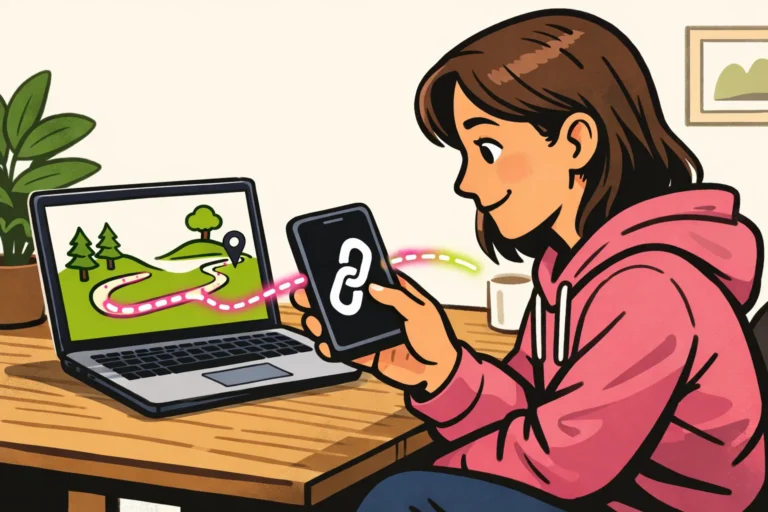
A page may open differently inside Instagram than in Safari or Chrome. Therefore, compare the same address on the same phone.
- Copy the link that is not working.
- Paste it into your browser’s address bar, not a search field.
- Check whether the page opens and note any error message.
- Return to Instagram and try the original link again.
Does the link work only in your browser? Then the page is reachable that way. Completely close Instagram and reopen the app. Test the link again. If that does not help, check whether there is an app update.
Does the link work nowhere? Check that the address is correct. Then try using mobile data instead of WiFi, or vice versa. Do not change the link and your connection at the same time. Otherwise, you will not know which change helped.
A shared Instagram post opens only in your browser
Can you view a shared post in your browser but not in the app? Then the link works through the browser. It just does not open in the app as expected. For now, you can view the post in your browser.
Can’t see the post anywhere? Check that you are logged in to the account you want to use. Also check whether you can find the post through the creator’s profile.
The post may have been deleted, or you may not have access to it. So one link that does not work does not prove that someone has blocked you.
Instagram link blocked or showing an error message
First check where the message comes from: the website or Instagram. Write down the text or take a screenshot. Do not share personal booking details or payment information.
| Message or situation | What can you do? |
|---|---|
| Page not found, sometimes with code 404 | Find the correct page through the website’s home page. Test the new address before replacing your link. |
| You need to log in | Check whether logging in is supposed to be necessary. The fact that you can see the page does not mean a visitor can access it too. |
| Warning about an insecure connection | Do not continue or enter anything. Is it your own website? Contact the administrator or the company hosting your website. |
| Instagram rejects the link or displays a warning | Save the message and check where the link leads. Then use the available help or option to report the issue. |
Do not keep hiding a blocked address behind another shortened link. That does not solve a possible problem on the final page. Check that you reach the intended website, even if the link redirects you automatically.
Do not enter your password on an unknown page that promises to restore your link. As a visitor, you cannot always solve a block yourself. Sometimes the website owner needs to make an adjustment.
Test your Instagram link all the way to the booking page or online shop
Does your link page open, but a button on it does not work? Also test the address behind that button. Linkrise recommends testing the entire route of your bio linkfrom your profile to the link page, the selected button and the final page.
Start on your profile as a visitor would see it, not on the screen where you edit your links. Do you have a public profile? If necessary, ask someone else to follow the same steps. You do not need to make a private profile public for this.
Fictional example: a barber in Ghent has a link page with a “Book an appointment” button. The link page opens, but the button leads to an old booking calendar. In that case, only the address behind the button needs to be changed. The profile link can remain in place.
Another fictional example: a small online shop in Utrecht shares a payment page that only works with its own filled shopping cart. Test that link without the shopping cart, for example in a private browser window. Does the payment page require personal information or a shopping cart? For visitors, use a public product page instead.
Test until you see that the correct page appears. You do not need to make an actual payment to check whether a product link leads to the right place.
Checklist if your Instagram link is still not working
Briefly note what you tested and what happened. This way, you do not have to repeat the same test over and over. You can also use this information when asking for help.
- Placement: is the link on your profile, in a post or in a comment?
- Address: which exact link did you test?
- Problem: can’t you tap the link, does the page keep loading, or do you get a message?
- Comparison: does the link work in Instagram, in your browser or nowhere?
- Adjustment: which part did you change?
- Outcome: what happened during the next test?
Does the page also fail to open outside Instagram? Contact the website administrator. Does the same address work there, but Instagram still rejects it? Report the issue to Instagram. Provide the address, the exact error message and your test results so it is clear where things go wrong. Once your account is working as intended, you can explore our Instagram services to compare packages for followers and likes for your public profile or content.