You can remove a TikTok filter as long as you can still adjust it separately. Before recording, you can turn the filter off. With a draft, it depends on how you created the video. In a saved or posted video, the filter is usually fixed in the image. In that case, you need the recording without the filter or you need to film again.
Is your video still in your drafts, on your phone or already online? Choose your situation below. You will read what you can try and when it is better to look for the original recording.
When can you remove a TikTok filter?
What matters most is whether the filter is still a separate setting. If so, you may be able to turn it off or reduce its intensity. Is the colour or distortion already part of the video file itself? Then it will not disappear by disabling a filter.
| Where is your video? | What can you do? | What should you look out for? |
|---|---|---|
| You still need to record | Turn off the filter and any effects. | Check the image with a short test recording. |
| In your drafts | Check whether you can still adjust the filter separately. | Even in a draft, the filter may already be fixed in the image. |
| In your photo library | Look for the original recording without the filter. | In a saved final version, you usually cannot adjust earlier edits separately. |
| Already posted | Create a new version using the original recording. | A new upload is a separate post. |
Suppose you give a video a pink colour in another app and save it. If you upload that file to TikTok, the image is already pink. TikTok does not have the separate filter setting from that other app. You therefore need to adjust it there, if that is still possible.
Turning off a TikTok filter before recording
Before filming, open the filter settings and look at the camera image. The names and locations of buttons may differ between app versions. Look for the filter selection and check what you can adjust there.
- Turn off the active filter. Choose the option without a filter, if available.
- Check the intensity. Do you see a slider for the selected filter? Set it to zero if possible.
- Check the other settings. A face effect or skin retouching may still be enabled after you turn off the colour filter.
- Make a short test recording. Play it back before recording the entire video.
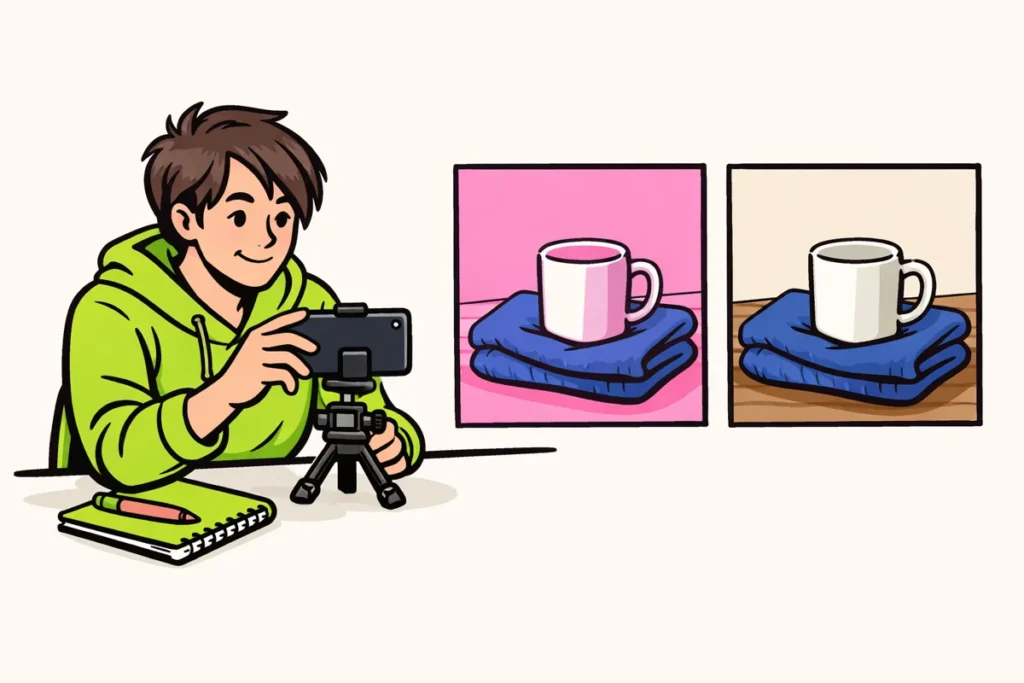
For your test, use something whose colours you know well, such as a white mug next to a blue sweater. Also look at your face and the background. Is anything still changing in shape? Then another effect may still be enabled.
Does the image remain somewhat yellow? That does not necessarily mean it is a filter. A yellow lamp can also make the image warmer. Check the lighting before looking further through the settings.
Removing a TikTok filter from a draft
Open your draft and check the editing options to see whether you can still turn off the filter or reduce its intensity. A draft is a video you have not posted yet. That does not mean you can undo every earlier edit.
- Play the entire video. Check where the unwanted colour or distortion begins. It may only be present in one section.
- Open the filter settings. Try the option without a filter or set the intensity to zero, if possible.
- Compare the same moment. View the same image before and after your adjustment. This makes it easier to see what changes.
- Check effects separately. For example, does your face remain distorted? Then also check the effects and any skin retouching.
- Keep the original recording. Do not delete anything before checking that the new version is correct.
A fictional example: you film your cat with your phone camera and then add a colour filter in TikTok. Can you still adjust that filter separately in the draft? Then you can restore the colour without filming your cat again.
Did you add a video that was already purple when you saved it? Then turning off only the TikTok filter will not help. Look for the earlier version in your photo library or open the app in which you edited the video.
Recognising and removing a TikTok effect
A filter usually changes the colours or the difference between light and dark. An effect can distort your face, add a mask or change the background. Skin retouching, such as making your skin smoother, may be a separate setting again.
According to TikTok’s explanation of filters and effects you can add filters before or after recording. Some effects are available only before recording, while others are available only afterwards.
Is only the colour different? Start with the filters. Do you see a mask or a different background? Check the effects. Check the appearance settings if your skin looks unusually smooth.
Can you still select and remove the effect separately? Try that and play the section again. If the change remains visible without an active effect, it may already be part of the recording. Turning off an effect for your next recording does not change earlier footage.
Does an effect cover part of your face? The real skin underneath cannot simply be recovered from the final file. A tool may fill in that area, but it is making an estimate. That is not proof that you will recover the original image.
Removing a TikTok filter after posting
Do not count on being able to remove a filter from a TikTok that has already been posted. Editing the description is different from changing the video footage. Usually, you need a new version made with the original recording without the filter.
- Look for the original recording or a usable draft.
- Create a version without the unwanted filter.
- Watch the entire video and also check the sound and any text.
- Post the new version if everything is correct.
- Then decide what you want to do with the old post.
In TikTok’s explanation of editing, posting and deleting videos you can read more about editing, saving drafts and deleting posts.
Leave the old post up while preparing the new version if you are not yet sure that you have all the files. Downloading the old post will not give you a recording without the filter.
Your existing likes and comments will not carry over to the new upload. The same number of views is not guaranteed either. Is it only a small colour difference? Compare the versions before deciding whether you want to repost the video.
Removing a filter from a saved TikTok video
A saved or downloaded video is usually one finished file. Filters, text and other edits are no longer available separately within it. Opening the file again in TikTok does not separate those edits again.
So first look for a version without the filter:
- Check the recordings from the same day in your photo library.
- Check whether you have an unedited copy somewhere in your own storage.
- Open the original project if you used another video app.
- Did you receive the video? Ask the creator for the original.
Do you only have the edited video? Sometimes you can make a striking colour less intense by adjusting the colours again. This does not remove the old filter. You are editing the image once more, and lost details do not automatically return. Work on a copy so you can compare both versions.
A watermark is different from a filter: it is a visible mark over the image. Is that what you mean? Then read about removing a TikTok watermark from your own video. This does not remove a colour filter or face effect.
Common mistakes when removing TikTok filters
Using a second filter as a solution. A cool filter can make a warm colour less noticeable. However, you will not automatically get the original colours back. Compare it with the recording without the filter if you have it.
Deleting your draft too quickly. You could lose usable material this way. First check whether you still have the separate recordings and whether they play correctly.
Trusting an app that promises complete recovery. An app can adjust colours or fill in missing areas. That does not mean the result is the same as the actual recording without the filter.
Looking only at the filter. Also check effects, skin retouching and lighting. These may explain why the image remains different from what you expect.
For your next video, first save a recording without a filter and add edits afterwards. That way, you can return to that recording if you do not like a colour or effect later.