Want to zoom out on TikTok? Before filming, check whether the zoom control lets you capture more in the frame. If you do not see that option, try your phone’s camera. With an existing video, you may sometimes be able to return to the wider, original view. Anything outside the original recording cannot be recovered by zooming out.
Below, you will learn how to do this while filming and editing, and what you can do if zooming out does not work.
How do you zoom out on TikTok while filming?
First, check whether your subject fits completely in the frame. Use the zoom control if it is available and choose a wider view. The options you see may vary depending on your phone and app version.
Cannot zoom out in TikTok? Then try your phone’s regular camera:
- Hold your phone the way you want to film, for example vertically.
- Open your phone’s camera and choose video.
- Use the zoom control, if available, to capture more of your surroundings.
- Make a short test recording. Check whether everything is visible and whether the image remains sharp enough.
- Record your video and then use that recording for your TikTok.
Cannot zoom out any further with the regular camera either? Stand a little farther from your subject before filming. That is not zooming, but it does let you capture more. Also check the sound: your voice may sound quieter from a greater distance.
For the available recording features, you can also consult the explanation of TikTok’s camera guide.
How do you zoom out in a TikTok that has already been recorded?
That depends on the original recording. Did you zoom in while editing? Then you are showing only part of the image: a crop. You may be able to make it wider again. If something is not in the original recording, you cannot make it visible by zooming out.
The TikTok guide to editing videos mentions zoom options. Check the video preview to see what changes when you use them.
Pay attention to the difference between the video image and the timeline. The timeline is the strip where your video clips appear one after another. If only that strip becomes larger or smaller, the image your viewer sees does not change.
- You zoomed in while editing: open your saved edit or the original file. Adjust the crop so that you can see more of the image.
- You only have a file in which the image has already been cropped: find the original recording. It may contain more of the image.
- The original recording is also too tight: making the video smaller only adds space around the image. You will not see more of the surroundings as a result.
Suppose you are filming your cat, but her ears fall outside the original recording. A video editing program cannot bring those ears back by zooming out. Want to show them anyway? Then you need to film again.
What can you do if zooming out on TikTok does not work?
First, check exactly what is happening. The table shows what you can try in each situation.
| What do you see? | What can you do? |
|---|---|
| No zoom control while filming | Make a test recording with your phone’s regular camera. |
| The view does not become wider | Check whether you are already seeing the full camera view or the complete recording. If necessary, move farther away or film again. |
| Only the timeline changes | You are only making the strip with clips larger or smaller. Check the video preview to see whether the image itself changes. |
| Borders appear around your video | You are making the entire video smaller. Find the original recording if you want to show more of the surroundings. That is only possible if those surroundings are visible in it. |
Are you also missing voice effects? Read the explanation of TikTok voice effects that are not visible. Are you repeatedly logged out while trying? Then see why TikTok logs you out.
How do you create a smooth zoom out for your TikTok?
Want to start with a detail and then show the entire frame? Use a video editing program that works with keyframes. A keyframe is a marker that records how large the image is at that moment. The program can create the movement between two markers.
- Choose a recording in which your entire subject is visible.
- Add a keyframe at the beginning. Enlarge the image there until you see the desired detail.
- Add a second keyframe a little later. At that point, show the entire frame.
- Play the section. Is the zoom out too fast? Move the two markers farther apart.
- Save your video and view the result before using it for TikTok.
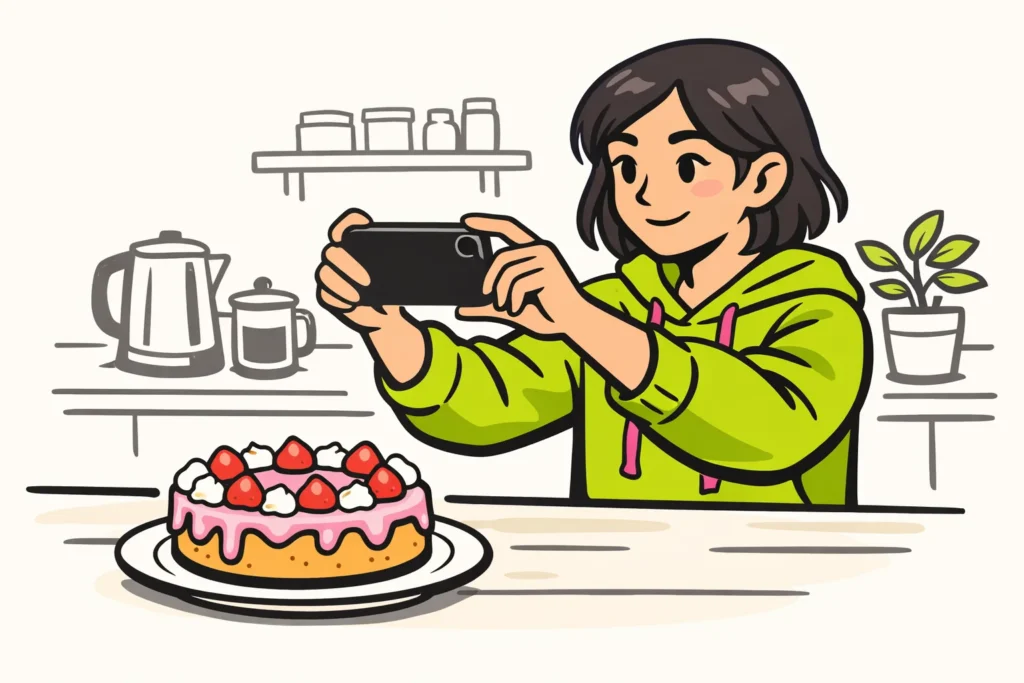
Suppose you first want to show a detail of a cake you made yourself and then the whole cake. Film the entire cake right away. While editing, enlarge the beginning of the recording to show the detail.
Enlarging too much can make the image less sharp. Therefore, view the beginning of your zoom especially in full screen. If you also publish your own content, our TikTok services includes packages for followers and likes. The product pages show the available quantities and prices.
Which way of zooming out suits your TikTok?
- You are still going to film: choose a wider camera view or move a little farther away.
- You zoomed in while editing: adjust your edit so that you can see more of the image, or start again with the original recording.
- You want to zoom out smoothly: use a program with keyframes and a recording in which your entire subject is visible.
- Something is missing from the original recording: film again if that element needs to appear in the frame.