You cancel YouTube Premium with the provider that handles your payment. So first find your latest payment receipt. It shows whether you need to go through YouTube, Apple, Google Play or another provider. Use the account linked to that purchase. After cancelling, check the confirmation and the end date of your subscription.
Choose your provider below and follow the steps to cancel.
Where should you cancel YouTube Premium?
Look at who charges you, not which device you use to watch. Using an iPhone does not automatically mean that you pay through Apple.
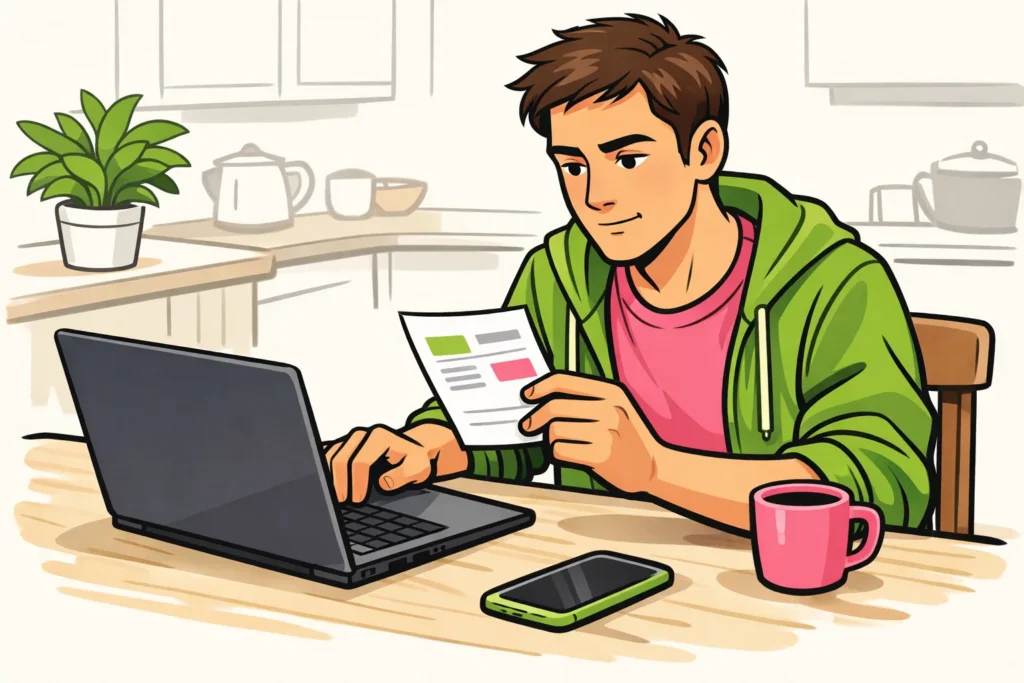
Search your email for the YouTube Premium payment receipt. Compare the amount and date with your bank statement. Then check which provider and account are listed on the receipt.
| What does your payment receipt show? | Where do you start? |
|---|---|
| A direct membership with YouTube | In the management section for your paid YouTube memberships |
| Apple as the provider | In your subscriptions in Apple settings |
| Google Play as the provider | In your Google Play subscriptions, using the account linked to your purchase |
| YouTube Premium on an invoice from Telenet or another provider | With that provider, with your invoice at hand |
Suppose you watch on your iPad, but your payment receipt lists a direct YouTube membership. Follow the YouTube steps, not the Apple steps.
Cancel YouTube Premium through the website
Sign in to YouTube with the account linked to your purchase. You can keep the official YouTube cancellation instructions open in a separate tab.
Go to youtube.com/paid_memberships: Manage membership → Deactivate → confirm.
Read the final screen carefully before confirming. Make sure you choose to cancel and save the message that appears afterwards.
Can’t see your paid membership? Compare the signed in account with the account on your payment receipt. This prevents you from trying multiple accounts without a clear purpose.
Cancel YouTube Premium through Apple
On your iPhone or iPad, go to Settings → your name → Subscriptions. Choose YouTube Premium and cancel it. This route is described in Apple’s guide to cancelling subscriptions.
Before confirming, check that you have selected the correct subscription.
Is Premium not listed? Check the payment receipt to see which Apple account is linked to the purchase. Also check whether Apple handles the payment. Does the receipt come from Apple, but you cannot find the subscription? Ask Apple for help.
Cancel YouTube Premium through Google Play or Telenet
You pay through Google Play
Open your subscriptions in Google Play using the account linked to your purchase. Find YouTube Premium and check which cancellation option is shown. Follow the instructions until you see a confirmation.
Can’t find the subscription? Have the purchase email ready and check your account. If necessary, ask Google Play for help using your payment receipt. Do not share a password or full payment details.
Premium is on your Telenet invoice
Check whether YouTube Premium is listed as a paid service on your invoice. Then ask Telenet where you can stop that service. Also ask them to confirm the date from which you will no longer pay for it.
The steps may depend on your package. Therefore, check the process with Telenet and do not assume that the same buttons as on YouTube apply.
Checking whether YouTube Premium has been cancelled
Check with the provider where you cancelled whether the cancellation has been processed. Simply closing the screen is not confirmation.
- Read the message for your subscription. Look for confirmation of the cancellation and a possible end date.
- Save the confirmation. Take a screenshot or save the confirmation email if you receive one.
- Check the account. Compare the account on the confirmation with the one on your payment receipt.
- Note the end date. Also check your bank statement around the date when you would otherwise pay again.
Money is still being debited
Compare the new debit with your cancellation confirmation. Check the amount, date, provider and account. Also check whether you may have a second subscription.
Then contact the provider that debited the amount. Tell them when you cancelled and ask what the new payment is for. Keep your payment receipt and cancellation confirmation at hand.
What happens after cancelling YouTube Premium?
After cancelling, new charges stop unless you become a member again. Benefits remain available until the end of the paid period.
So check the end date in your account before trying to cancel again. Would you like to know which features this concerns? Read about the benefits of YouTube Premium.
Will you get a refund?
Cancelling does not automatically mean that you will get a refund. Would you like to request a refund? Do this separately with the provider that processed your payment. State which payment it concerns and why you are requesting a refund.
Pause or cancel YouTube Premium?
YouTube also offers pausing and resuming.
Do you want to stop paying and prevent the subscription from starting again automatically? Choose cancel. Would you prefer a pause? Check whether that option is available for your subscription.
Before confirming, read when the subscription will start again and when you will have to pay again. Note that date. Is it unclear? Ask your provider first. If you also publish your own content, our YouTube services includes packages for subscribers and views. The product pages show the available quantities and prices.