
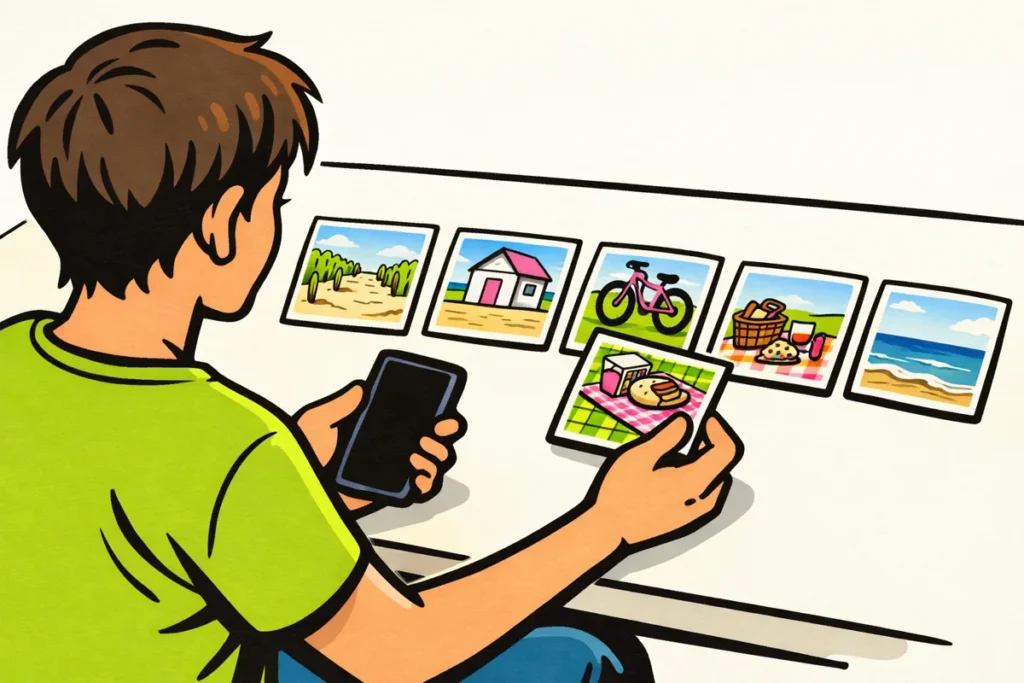
You make a TikTok slideshow by starting a new post and choosing multiple photos. Choose a photo post if you want people to swipe through the photos themselves. Want the images to play one after another automatically? Turn them into a video instead. The options you see may vary by app version and account.
Below, you’ll read step by step how to add the photos and finish your post. Can’t see an option? Check the explanation under the problems section.
TikTok slideshow: choose a photo post or video
A slideshow is a series of photos in one post. You can make one in several ways. First, consider whether the viewer should be able to control the pace themselves.
| Format | How does it work? | When is it useful? |
|---|---|---|
| Photo post or Photo Mode | The viewer can swipe through the photos themselves. | For an explanation, list or photos with lots of detail. |
| Template | A ready made layout puts your images into a fixed format. | When you want to use a particular style quickly. |
| Automatic slideshow as a video | The photos change automatically at a set pace. | For a short recap or atmospheric images set to music. |
Swiping yourself is useful for a recipe. Someone can then take their time reading the ingredients before the next step appears. A video may work better for holiday photos set to music. A template can help you make such a video, but it is not the same as a photo post.
How to make a TikTok slideshow with photos in the app
For example, start with five photos on the same subject. This is not a TikTok limit, but an easy to manage selection to practise with.
- Get your photos ready. Find the images in your photo library. Decide which photo should come first and which should follow. Leave out duplicate images.
- Start a new post. Open the screen where you create a post. Look for the option to add existing photos or files.
- Choose multiple photos. See an option to select multiple files? Use it and check that all the photos you want have been selected.
- Choose how you want to display the photos. Use the photo or Photo Mode option if you want people to swipe through the series themselves. Check the preview to make sure that is what happens.
- Check the order and crop. Are the images in the right order? Are faces and important details fully visible? Adjust this where possible. If you cannot, select the photos again.
- Finish the post. Add sound, text and a description if those options are available. View the whole series before sharing the post.
Buttons and screens may look different for you. TikTok also has an explanation of creating and uploading photos and videos.
How to make an automatic TikTok slideshow with a template or Autocut
Want your photos to change automatically? Check whether you can choose a template or automatic edit. The latter option may be called Autocut, for example. This lets the app create a first version of your photo video.
First, view the layout preview. Then add your own photos and play the result all the way through. Pay attention to these points:
- Does each photo stay on screen long enough to see what is shown?
- Do heads, dishes and other important details remain visible?
- Are the transitions between the photos distracting?
A quick edit may suit party photos. An explanation with text needs more reading time. Can’t adjust the pace enough? Try a different layout or choose a photo post.
Is the automatic option missing? You can also put the photos one after another in a separate video editing app. Then upload the result as a video. Viewers will not be able to swipe through individual photos themselves.
Add music, text and a cover to your TikTok slideshow
Choose music
Use the sound option available for your type of post. Play the music together with your images. A busy song, for example, can distract from a calm photo series.
Only use music you have permission to use or that is available for your intended use. A business or promotional post does not automatically have the same usage rights as a personal post.
Add text to your photos
Keep the text short and choose a colour that clearly contrasts with the photo. Do not place words too close to the edge. A crop or button may cover part of the text there.
For a recipe, for example, you could start with: “Quick lunch with whatever is left in the fridge.” Then show one step per photo. This means the viewer does not have to read too much at once.
Can’t find a suitable text option in TikTok? Add the text beforehand in a photo editor. Also save the original photo without text.
Choose a cover
The cover is the preview image for your post. Can you choose it separately? Choose a photo that immediately shows what the post is about. If there is no separate cover option, your first photo is especially important. Also check the crop if the app shows a preview of it.
Give your TikTok slideshow a clear order
Start with a photo that shows the subject. Use the following images to show something new and finish the series with a suitable final photo. Almost identical photos add little, even if you like them all.
These fictional examples show how you can build a series:
- Your own creation: start with your handmade vase. Then show the materials, two steps and the finished result on the table.
- Online shop: show a bag, the inside and the fastening. Show its size next to an everyday object.
- Hospitality: start with a dish, then show the ingredients and preparation. Sharing menu information? Check that it is still correct.
- Travel: show the destination first. Then show a short walking route with landmarks.
- Event: choose images of the location, preparation and different moments. Leave out almost identical group photos.
Want to make a post that is useful to save? Provide complete information, such as an ingredients list or a step by step guide with no missing steps. Also make sure the series can be understood without music. You cannot predict how many people will watch or save your post based on this.
Why can’t I make a TikTok slideshow?
First, check where the problem occurs. Can’t you open your photos? Or does uploading work, but you only get a video? Each problem requires a different step.
| Problem | What can you try? |
|---|---|
| You cannot see your photos. | Check your phone settings to see which photos TikTok is allowed to open. Give access only to what is needed. |
| You can choose only one photo. | Look for the option for multiple files. Check that you have chosen an upload method that supports this. |
| You get a video instead of a photo post. | Go back and see whether you can choose a different display mode, without a template. |
| A photo is missing or will not load. | Open the photo in your photo library first. Check that the file is stored on your phone. |
| Photo Mode is missing. | Update TikTok through the official app store. Close the app, open it again and check the options once more. |
Save your original files before trying anything else. Do not delete the app as your first step: drafts stored on your phone may then be lost. An update does not guarantee that a missing feature will appear.
Can’t make longer videos either? Read why you cannot make a 10 minute video on TikTok. That is separate from Photo Mode being unavailable.
Check your TikTok slideshow before sharing it
View the whole post again, from the first photo to the last. Use this checklist:
- Text: can you read everything on your phone without zooming in?
- Order: are all the steps needed to follow your explanation included?
- Privacy: can you see addresses, tickets, number plates or private messages that you do not want to share?
- Permission: are you allowed to use the photos and music? Are recognisable people happy for you to share their photo?
- Audience: have you set who may see this post?
For this last step, TikTok’s explanation of the visibility of videos and photo posts. Check the setting on the post you want to publish.
Frequently asked questions about TikTok slideshows
How many photos do I need?
Use enough photos to complete your story. For example, start with five. Add an image only if it shows something new. Follow the notification in your app for the permitted maximum.
Can I combine photos and videos?
That depends on how you create the post. Want photos and videos to play one after another? An edit as a video may be suitable. Check which files you can add in the app you have chosen.
Can I use the same photos on Instagram?
You can reuse your own original images. On Instagram, check the crop and music choice again. Want to make a short video from your images there? Read the explanation about making an Instagram Reel.