You add text to a TikTok video after recording or uploading the video. Tap Text, type a sentence and drag it to where you want it. Choose lettering that stands out clearly against the background. Then play the entire video to see whether your text remains readable and stays on screen long enough.
Below, you’ll find the steps, how to make text appear at the right moment and what you can do if something does not work.
How to add text to your TikTok video step by step
You can record a new video or use a video on your phone. Button names and available options may vary by app version.
- Record your video or upload it. First, choose which footage you want to keep. Then work out the text.
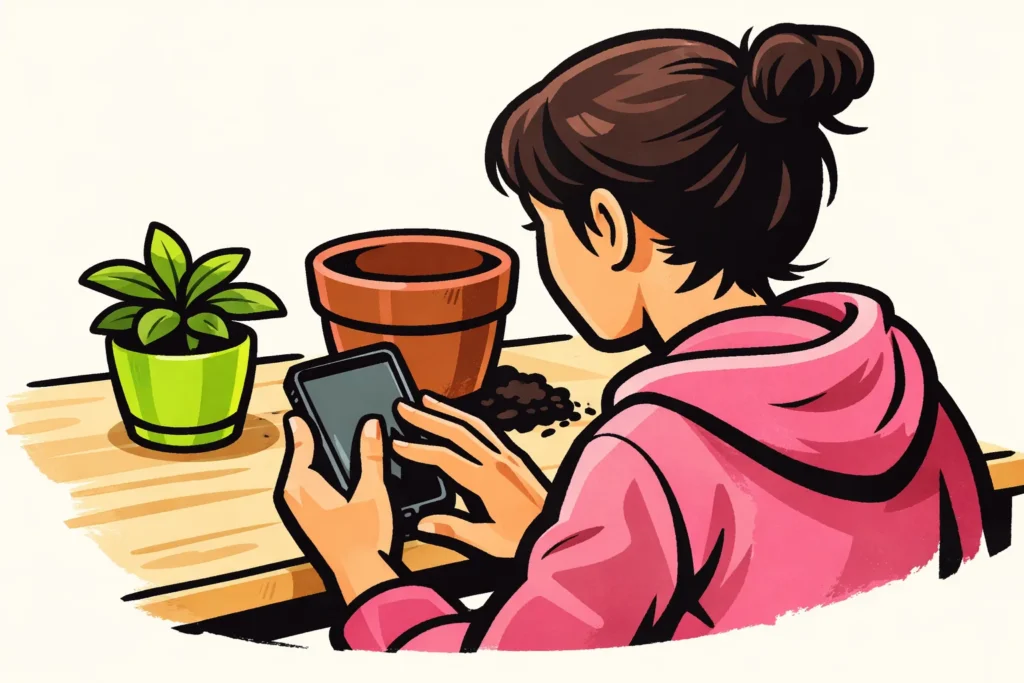
- Tap Text and type your sentence. Say something that helps explain the image. For example, are you filming yourself repotting a plant? You could write: “This is how you can tell whether the pot is too small”.
- Choose a font and colour. Make sure the lettering stands out clearly against the background.
- Drag the text to an uncluttered area. Leave the most important part of your image clear. So if you are showing a plant, do not place the text over the roots you want to show.
- Watch the entire video. Also check the final footage. Text that is positioned well at first may later appear over your face.
The TikTok explanation of editing posts describes how to add and adjust text.
Showing text on TikTok for a few seconds
Do you want to show a sentence only at a specific moment? Select the text box and look for an option for duration or timing. The options you see may vary by app version.
Do you see a timeline? This is a strip that shows when something happens in your video. Set the beginning and end of your text there. Make the sentence appear with the footage it relates to. Remove it before the next explanation begins.
This fictional example shows how you can divide the text across a twelve second video about repotting a plant:
| Moment | Example text | Duration |
|---|---|---|
| 0 to 3 seconds | Is this pot too small? | 3 seconds |
| 3 to 8 seconds | Look at the roots underneath | 5 seconds |
| 8 to 12 seconds | Time for a bigger pot | 4 seconds |
These times are an example, not a fixed reading rule. Read each sentence aloud while playing the video. Does the text disappear before you finish? Shorten the sentence or leave it on screen longer.
Can’t find a duration setting? For now, use one sentence that fits the entire video. That way, multiple instructions will not appear on screen at the same time.
Moving, enlarging or removing text on TikTok
Drag the text box to move it. Adjust its size with two fingers. Move them apart to make the lettering larger and towards each other to make it smaller.
Want to change or remove the sentence? Select the text box and view the editing options. The controls may vary by app version. When removing it, choose the option for the text box, not for the entire video.
After making changes, also check the reading duration. A longer sentence often takes more time to read. Does the text not fit well? Removing a word sometimes works better than making the lettering smaller.
Editing text in a TikTok draft or posted video
Your video is still a draft
A draft is a saved video that you have not posted yet. Open the draft and see whether you can return to the screen where you edit the video. Try selecting the text box there.
Did you add the text to the video file in another app? Then it is already fixed in the image. To replace that text, you need the original file or the project from that app.
In the Dutch explanation of adding text and editing drafts you can read more about this here. The controls shown may differ from those in your app version.
Your video has already been posted
Do not assume that you can still change the text in your video after posting it. Editing the description below your post is different from changing the lettering in the image.
Is there an error on screen? Save your original video and see whether you still have a draft that you can edit. Adjust the text there and watch the video before posting it again. Only delete the existing version once you are sure you still have the material you need.
Text, subtitles and text to speech on TikTok: what is the difference?
Regular text displays a short message on screen. Subtitles show what someone says. Text to speech has a computer voice read your text aloud.
| Type | What is it? | When do you use it? |
|---|---|---|
| Regular text | Words that you place on screen yourself. | For a title, question or short instruction. |
| Subtitles | The words someone says, written out on screen. | To follow spoken explanations without sound as well. |
| Text to speech | A computer voice that reads your written text aloud. | When you want a sentence read aloud without recording it yourself. |
A title such as “My new plant” does not replace the subtitles for your spoken explanation. Do you use automatically generated subtitles? Check them for incorrect words, especially names.
Want to use text to speech? Check whether that option is available for your text. Listen before posting to make sure the voice pronounces the words as you intend.
Making text in your TikTok video easy to read
- Put one message in each text box. For example, write “Only water when the soil is dry” instead of a whole paragraph about plant care.
- Make the lettering stand out against the image. White lettering is hard to read on a white wall. Choose a dark colour or use a background behind the text, if that option is available.
- Leave space along the edges. Buttons and other elements may appear over your video there.
- Pay attention to movement in your video. A calm background may become busy a moment later. Check whether the text is still readable then.
- Watch without sound as well. Is it still clear what the text is about?
Your first sentence can simply say what is visible. For example: “I’m bringing this for an afternoon walk”. Choose a sentence that matches what you show in the video.
Solving problems with text in your TikTok video
The text disappears too quickly or overlaps other text
Check the beginning and end of each text box, if you can set them. Pay particular attention to the moment when one sentence gives way to the next. Shorten the sentences if there is too much to read at once.
You can no longer select the text
Check whether you opened the editable draft or a video file in which the text is already fixed. Adding new text does not remove the old text. In that case, use the original material.
The editing screen does not load
Do you also see a message about your connection? Then read what you can do if TikTok has no internet connection. Do not delete your draft just because the screen is temporarily unresponsive.
You want to find a video with a useful text example
Have you seen a video before where the text was positioned well? Try to find it again through your TikTok watch history. Pay attention to where the text appears and how long you can read it. Use that layout as an example and write your own sentences.
Your video gets few views
Clear text helps your viewer understand the video, but does not guarantee extra views. Want to know why your followers may not see your video? Then read why TikTok may not show your videos to your followers. If you also publish your own content, our TikTok services includes packages for views and followers. The product pages show the available quantities and prices.