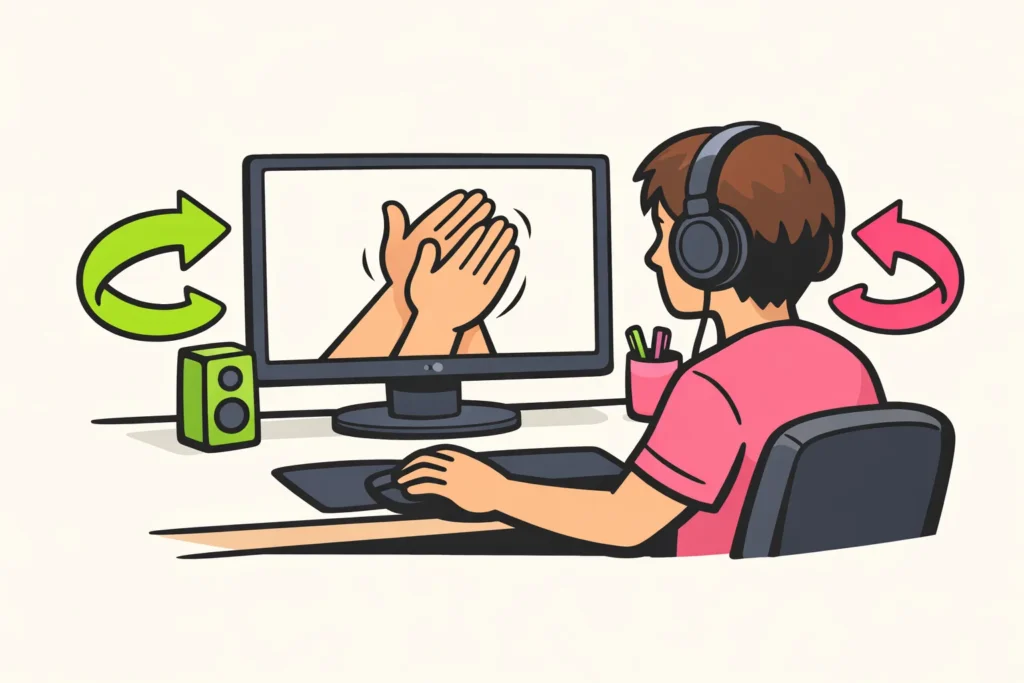
You can have a YouTube video play again automatically using the repeat feature. Open the video you want to keep watching or listening to. On your computer, right click and choose Loop . On your phone, look in the settings for Repeat video. Autoplay does something different: it starts another video when the current one ends.
Choose your device below or learn how to repeat an entire playlist.
Repeat a YouTube video on your computer
- Open the video on YouTube.
- Right click in the video area.
- Choose Loop.
These steps are in the YouTube help guide for repeating on your computer.
Click the image itself, not the title or the space beside it. Does your browser menu appear? Check where you clicked and try again inside the video area.
You can test whether it works right away. Go to just before the end and let the video finish playing. Does it start again? Then repeat is on.
Repeat a YouTube video on Android and iPhone
- Open the video in the YouTube app.
- Open Settings in the video player.
- Choose Additional settings.
- Turn Repeat video on.
You can find these steps in the YouTube mobile help guide for Repeat video. The menu may look different depending on the app version.
Suppose you are practising a dance step with a short video. After turning repeat on, let the video play through once. When the beginning comes back, you can keep following the instructions without pressing play again each time.
Repeat a YouTube playlist or a single video
A playlist is a list of videos. First choose what you want to repeat: the entire list or only the video you are watching now.
| What do you want to see? | What will you choose? |
|---|---|
| All videos one after another, then the first one again | Repeat the entire playlist |
| The same video from the list each time | Repeat only that video |
Use the playlist repeat feature if you want to play the entire list again. After the last video, check that the first one starts again.
Do you want to repeat just one video but cannot find that setting? Open the video outside the playlist. For example, search for the exact title and then follow the steps for your computer or phone.
Suppose you have three practice videos in a list but only need the second one. By opening it separately, you do not have to work out which repeat mode applies to the entire list.
Repeat YouTube on a TV or game console
Look for a repeat option in the video controls. You cannot simply follow the steps for your phone on a TV or game console.
Cannot find a repeat option? Try it on a computer or phone using the steps above. Are you going to watch on another device afterwards? Test again to see whether the video repeats. Do not assume the setting carries over.
The difference between YouTube repeat and autoplay
With repeat the same video starts again. With autoplay, or automatic play, another video starts when the current one ends.
Do you want to hear the same calming piece of music while reading? Choose repeat. Would you rather watch something else afterwards? Autoplay is a better fit then.
Does another video start unexpectedly? Check that you turned on repeat rather than only automatic play. Also check whether the video is still in a playlist.
Video repeat is missing on YouTube
First check where you are watching the video. Is it on another website? Open it directly on YouTube instead. The steps for the YouTube app do not apply to a video on another website.
- On your computer: right click inside the video area, not beside it.
- On your phone: also check Additional settings. Do not stop at the first menu.
- If the menu looks different: check whether you can update the app and open the video again. An update does not always solve the problem.
Still cannot see the option? Try it on a computer if you can use one. You do not need to install an extra app right away.
Repeat YouTube with another website or app
First try YouTube’s own repeat feature if you want to play an entire video again. Another website or app is an extra step for this.
Do you still want to use another website? Do not give an unfamiliar website your Google password. Check what permissions an app requests. Access to your contacts or files does not make sense if you only want to repeat a video.
Pay attention to exactly what you want to play. The steps in this article repeat the entire video. They are not intended to repeat only a short section between a start point and an end point you choose yourself.
Repeat your own YouTube video
Did you make a practice video or a calm background video yourself? Watch the end and then the beginning immediately afterwards. Listen for the sound suddenly becoming louder or quieter and watch for long silences. You can adjust that transition when you edit your YouTube video.
Do you also want to improve the title and description? Learn how to optimize your YouTube video . Do you want to put the video on your own website? Read the guide to embedding a YouTube video.
















