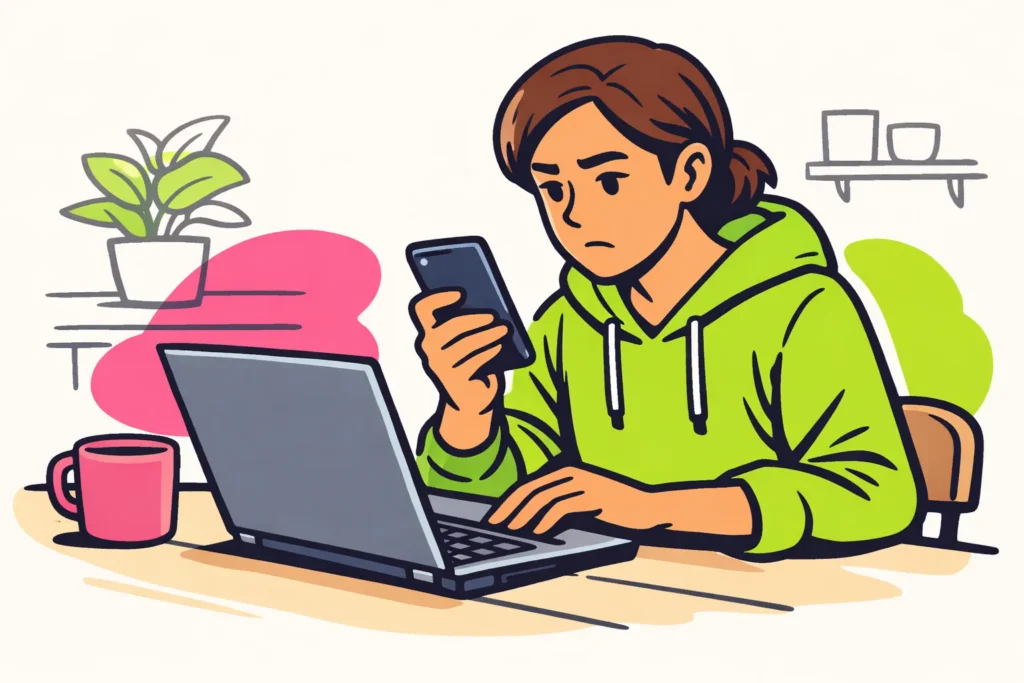
If you can’t log in to Instagram, it could be due to your password, the app, your connection or your account. First, try logging in through the official Instagram website. Don’t log out on devices where you still have access. If the website works, the problem is probably with the app. If it doesn’t work there either, check which error message you receive.
Find your situation below and read which steps you can try.
Can’t log in to Instagram: what does the error message say?
The message on your screen helps you work out what to do. Write down the text or take a screenshot for yourself. Don’t share an image showing passwords, codes or personal recovery details.
| What do you notice? | What should you check first? |
|---|---|
| Instagram says your password is incorrect. | Check the details you entered. Then try to reset your password. |
| The website works, but the app doesn’t. | Check the app and your connection. |
| The app and website keep loading or show a general error. | Try a different connection. A general error doesn’t necessarily mean your account is blocked. |
| Your password is accepted, but Instagram asks for a code. | Check which extra security measures you have set up. |
| Your details have been changed without your permission. | Follow the steps for a potentially hacked account. |
| Instagram says your account has been disabled. | Read the message and check whether you can request a new review. |
Are you still logged in on another device? Stay logged in there for now. You may need that access to check your account details and security.
Check your Instagram login details and connection
Start with the checks below. Change one thing at a time and then try again. This helps you see what works.
- Check which account you are opening. Do you use multiple profiles? Your phone may then fill in details for another account. If necessary, enter your username and password yourself.
- Look for typing errors. Pay attention to capital letters in your password. Also check whether you accidentally included a space when copying it.
- Open another website. Does that not load either? Check your internet connection first.
- Switch between Wi Fi and mobile data. Use your own device and a connection you trust.
- Try the official Instagram website. Open it yourself in your browser. Don’t use a link from an unexpected message for this.
Does Instagram not work on multiple devices and connections? There may be an outage, but it could also be related to your account. Don’t keep trying to log in repeatedly. If you receive a message telling you to wait, follow it. A general error message doesn’t tell you how long the problem will last.
Your Instagram password or login code doesn’t work
Have you entered your password carefully, but Instagram still rejects it? On the official login screen, look for help with a forgotten password or with logging in. Follow the recovery options shown there. The wording on the screen may vary.
You don’t receive a recovery email
You can use these checks to find out where the email is:
- Check your spam folder and search your mailbox for Instagram.
- Check that you are opening the mailbox linked to your account.
- Check whether your mailbox is still receiving new messages.
- Is Instagram showing you a partially hidden email address or phone number? Check whether you recognise it.
- Don’t request multiple emails straight away. This stops you mixing up the recovery messages.
Can you no longer access your old mailbox or phone number? Choose another recovery option if Instagram offers one. If you don’t see another option, consult the official help for login problems. You can also first try to regain access to your mailbox through your email provider.
Don’t recognise the recovery address? First check that you entered the correct username. If it is correct, the unknown address could indicate that your account details have been changed.
Your password works, but you don’t have the extra code
Does Instagram ask for a code after your password? This is two factor authentication: extra security where, in addition to your password, you use, for example, a code from an authentication app.
Check which method you set up previously. Did you save backup codes? Use them through the associated option if you see it. If you can no longer get a code anywhere, look for another official recovery option. Simply changing your password again is not the right step in that situation.
You can only log in to Instagram through the website
Can you log in on the website with the same details? Then your password works there at least. First check the app and your phone:
- Close the Instagram app completely and open it again.
- Check the official app store to see whether you can update the app.
- Restart your phone.
- Try the app through another connection you trust.
Don’t delete the app straight away. First check that you know your password and can access your recovery email and any extra login codes. Also save any work you still need before clearing the app data or reinstalling the app.
Is it דווקא the website that doesn’t work while the app does? Stay logged in to the app and try another browser that is up to date. This lets you test whether the browser is the problem without giving up your existing access.
Your Instagram account may have been hacked
Not being able to log in doesn’t necessarily mean that your account has been hacked. The NCSC lists, in its guide to recovering a hacked account also changed settings, unknown messages and unusual login attempts as possible signs.
Do you see such changes? Follow these steps:
- Check your mailbox. Do you think someone is abusing that too? Secure your mailbox as well. Someone who can access it may be able to read your recovery emails.
- Use a device you trust. Start recovery from the official Instagram app or website.
- Choose help for a compromised account. Follow the checks Instagram offers you. If you can’t access your recovery details, more steps may be needed.
- Check your account if you are still logged in somewhere. Check that your contact details and security settings are correct. Don’t log out first.
Is someone asking for money through a private message to get your account back? Don’t engage with them. Never share your password, login codes or backup codes with that person, even if they claim to be a staff member.
Also watch out for phishing: fake messages that try to steal your details. Did you unexpectedly receive a recovery message? Open Instagram yourself to continue. Don’t automatically trust the link in the message.
Meta reports in its message about support for Facebook and Instagram accounts more extensive help and improved recovery processes. The help available differs by situation and region.
Your Instagram account has been disabled or restricted
Does Instagram clearly say that your account has been disabled or suspended? Simply changing your password won’t counteract that measure. Read the reason and request a new review if Instagram offers that option.
Save the message. Only provide the details that Instagram requests as part of the official recovery process. If you can’t respond anywhere, consult the official help from Instagram. It is not certain in advance whether or when you will regain access.
A temporary restriction on one feature is different from being unable to log in. Can you open your profile but are unable to complete a particular action? Read the explanation for that action:
- Why can’t I follow someone on Instagram?
- Why can’t I reply to Instagram messages?
- Why can’t I repost on Instagram?
Secure your Instagram account after recovery
Have you regained access after someone may have misused your account? Also check your security:
- Choose a password that you don’t use anywhere else.
- Check that your email address and phone number are correct.
- See where your account is logged in. End access you don’t recognise if that option is available.
- Set up two factor authentication and store any backup codes in a safe place.
- Check whether messages have been sent that aren’t from you. Warn the recipients if those messages contain suspicious links or requests.
Do you also use the old password for your mailbox or other accounts? Change it there too. Choose a different password for each account. You can store them in a password manager: an app that securely stores your passwords. Once your account is working as intended, you can explore our Instagram services to compare packages for followers and likes for your public profile or content.