Your Instagram posts can become blurry because of an unfocused shot, excessive cropping, or loss of quality when saving and uploading. Sometimes the image is sharp but has not fully loaded yet. So first open the same photo or video in your phone gallery. Is it already blurry there? Then start with the original shot. Is the original sharp? Check your editing, upload settings and connection.
Below, you will go through the checks step by step, from the original file to the post on your screen.
Where do your Instagram posts become blurry?
Compare the original, your saved edit and the post on Instagram. Look at where you first see fewer details. This helps you choose the right check.
| What do you see? | What should you check first? |
|---|---|
| The original in your gallery is also blurry. | The lens, focus, movement and lighting during the shot. |
| Only the edited version is blurry. | Whether you cropped out a lot or saved a smaller version. |
| You see blocks or details that look smeared. | Whether you are using a reduced or repeatedly saved copy. |
| The post is blurry only on your screen. | Whether the image loads fully and how it looks on another screen. |
Compression can also remove details. Compression means making a file smaller. For example, loose hair, grass or leaves may become less clear. This looks different from a motion blurred photo, but it can also appear blurry.
The explanation by Predis about blurry Instagram Stories mentions connection, compression and music as possible causes. This concerns Stories, not regular photo posts. So you cannot conclude from this that music makes your photo post blurry.
How to keep your Instagram photos and videos sharp
Use the original file from your camera or gallery. A screenshot or forwarded copy may contain fewer details. Did someone send you the photo? If necessary, ask for the original.
- Check the shot. Clean your lens with a soft cloth. Keep your phone steady and make sure there is enough light. Before publishing, check that your subject is in focus.
- Crop only what is necessary. The smaller the part of the photo you keep, the fewer details you have to display at a larger size.
- Edit from the original. It is better to start again with that file than to keep editing a saved copy.
- View the version you want to publish. Open your saved edit and compare it with the original. View them at approximately the same size.
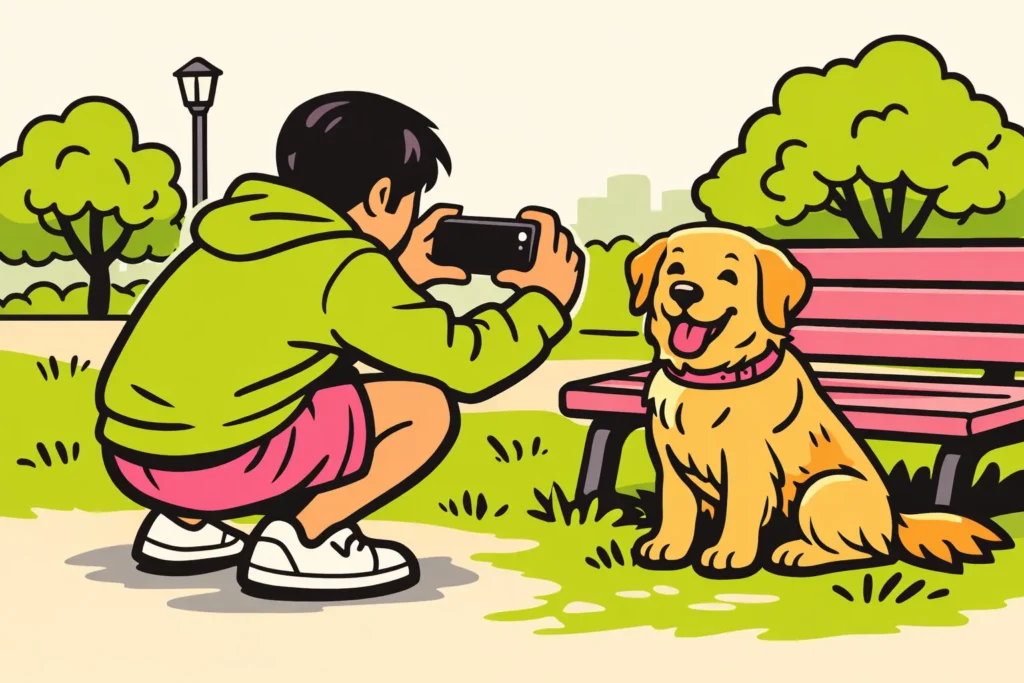
Suppose you photograph a dog on the other side of the park. You crop away almost everything except its head. That crop may then look out of focus. In a future photo, taking the picture closer will provide more usable details than enlarging it significantly afterwards.
Check movement in videos too
Play your video before uploading it. Is only the moving subject blurry while the background remains sharp? Then the problem probably already occurred during recording. For your next recording, try using more light and move your phone more steadily.
When saving an edited video, do not unnecessarily choose a small file. Can you choose the quality in your editing app? Then avoid an extra reduced version. A larger file cannot restore details that are already missing.
Check the upload quality in Instagram
In your Instagram app settings, look for words such as quality, media or data usage. Do you see an option for higher upload quality? Try it with one sharp original and compare the result.
Also check whether there is a data saving option. Does the explanation say that it affects image quality? Then temporarily test without that saving option. This may use more mobile data.
Can you not find these options? Continue with the connection test below. Does your app look different from the explanation you are following? Read why Instagram may look different.
Change one setting at a time. This lets you see which change makes a difference. Higher upload quality will not make an unfocused original sharp.
For general information about Instagram, visit Meta’s official Instagram information page.
Blurry Instagram posts? Test your phone and connection
A blurry file is different from an image that has not loaded properly. Therefore, do not immediately upload your post again. First check whether the problem occurs only while viewing it.
- Open the post again. Give the photo or video time to load fully.
- Try a different connection. For example, switch from mobile data to a stable Wi Fi connection. Then view the same post again.
- Compare it on another screen. Ask someone who can already see your post whether it is also blurry for them. You do not need to make your account public for this.
- Close Instagram and reopen the app. Also check your phone’s app store to see whether an update is available.
Is the post sharp on another screen? Then first look for the cause in loading or displaying it on your own phone. Is the post blurry everywhere while the original is sharp? Then check your saved edit and review the upload quality.
Do you see a black screen instead of a blurry photo? Read why your Instagram screen is black.
Checklist before publishing an Instagram post
Go through this before publishing a new photo or video:
- The original is sharp in your gallery.
- You are not using an unnecessarily reduced copy.
- You have not zoomed in or cropped too far.
- Your saved edit still looks good.
- You have checked whether you can set the upload quality.
- Your connection is stable while publishing and viewing.
Does the image remain blurry? Note whether it concerns one file or all your posts. Also write down whether others see the same thing. This will help you describe the problem more clearly when you seek help.
Are your posts sharp, but your followers cannot find them? Then read why your followers cannot see your Instagram posts. That is a different question from why your image is blurry. If you are also considering paid options, our Instagram services lets you compare packages for followers and likes, including the available quantities and prices.