If you cannot see voice effects on TikTok, this may be related to your video, app version or the options available on your account. You cannot tell what is wrong from the missing button alone. First, make a short, new recording in which you speak clearly, without music. When editing, check whether you see voice or audio options.
Below, you will read how to compare the result and what you can try afterwards.
TikTok voice effects missing or not working: what should you test?
Is the option missing completely, or can you choose an effect but hear no change? First, see which situation applies to your video.
| What do you see or hear? | What can you test first? |
|---|---|
| You do not see a voice effects option anywhere. | Compare your video with a short, new recording. |
| You see the option but cannot select it. | Write down any message that appears. Test the same option with your new recording. |
| You choose an effect but hear no difference. | Listen to check whether your own voice is clearly audible. Test without added music. |
| You can see effects, but not the effect you are looking for. | Check the exact name. One missing effect is different from being unable to choose any voice effects at all. |
This test gives you a better idea of where things go wrong. It still does not tell you the cause with certainty. A missing voice effect by itself does not mean that your account is restricted.
Where can you find voice effects on TikTok?
A voice effect changes the sound of your recorded voice. That is different from having a computer voice read text aloud. So look among the options for editing your recorded sound, not only among the text options.
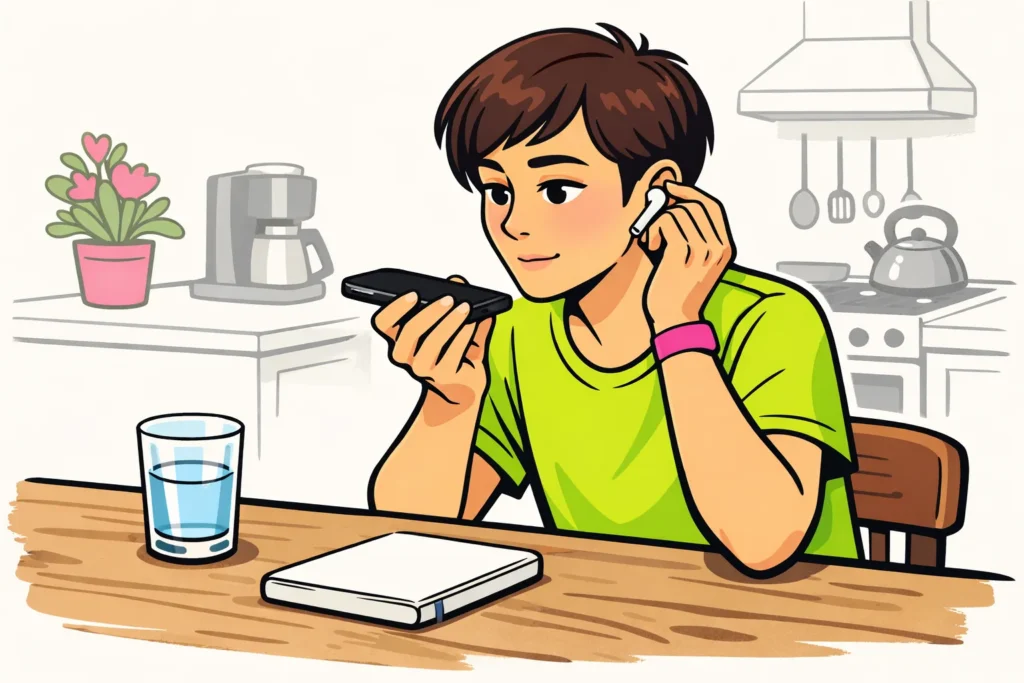
- Make a short recording in TikTok in which you say one sentence, for example: “I am testing how my voice sounds in this video.” You do not have to publish the video.
- Go to the screen where you can edit the recording.
- Check whether you see voice or audio options. The name and location may differ. Therefore, do not search only for the English name “voice effects”.
- Can you choose a voice effect? Choose it and listen to the preview.
- Is the option missing? Check whether this is also the case with your original video. Then continue with the checks below.
According to TikTok’s explanation of effects some effects are available only before recording. This explanation does not say which voice effects are included.
Do you want to use a voice you heard in another video? Note the name of the effect if it is shown. The creator may also have edited the voice outside TikTok. You therefore cannot tell from the sound alone whether that effect is available in your app.
Testing voice effects on an upload, duet or stitch
Test in your own app whether the voice effect works with an uploaded video, duet or stitch. Do not assume that this can always or never be done. A duet combines your video with another video. With a stitch, you use part of another video in your own recording.
Compare the video where things go wrong with your short test recording. Change as little else as possible. This makes it easier to see what makes a difference.
- The effect works with the test recording but not with the upload. The problem then seems to be with that video or with the way you add it. This does not mean that the effect does not work with any upload.
- The effect works with a regular recording but not with a duet or stitch. Write down that difference. Also check whether your own voice is clearly audible.
- The effect is missing in both. In that case, first check your app version. There is no need to upload the same video repeatedly.
Do you mainly want to distort your voice and does the option remain missing? You can edit a copy of your own recording in advance with a trusted audio or video program. This may give you the sound you are looking for. It does not restore the function in TikTok. Keep your original file.
Checking your app when TikTok voice effects do not work
At TikTok’s first steps for app problems the advice is to check whether you are using the latest app version.
- Check for an update. Search for TikTok in your phone’s official app store. Install an update if one is available.
- Fully close TikTok and open the app again. Then test the voice effect with a short recording.
- If necessary, restart your phone. Repeat the same test so that you can compare.
- Only then check the cache. These are temporary files. Do you see an option in TikTok to clear the cache? First read carefully what will be deleted.
Clearing the cache does not guarantee that a missing voice effect will return. Do not simply clear all app data or delete the app as a first step. First save important recordings and drafts in a safe place. Also check whether you can log in again.
Comparing voice effects by account or phone
Does someone else have the effect? Compare the effect name, app version and type of video. For example, compare two new recordings instead of a new recording with an upload.
Do you already have another account of your own? You can make a similar test recording on it, on the same phone. This changes only one thing at a time. You do not need to create multiple accounts specifically to look for an effect.
A difference between accounts does not immediately mean that it is related to your account type. And if the effect works on another phone, that does not prove that your device is unsuitable.
Your region, account type and feature tests are often mentioned as possible causes. You cannot infer that from one missing button. So do not change your region or account type simply because of a tip on a forum. Also do not install a modified TikTok app that promises hidden effects.
Reporting a missing TikTok voice effect
Does the effect remain missing? Search in your TikTok app for help or an option to report the problem. Briefly describe what is going wrong and what you have already tested.
- The name of the effect you are looking for, if you know it.
- Whether the option is missing, cannot be selected or produces no audible difference.
- Whether you are using a new recording, upload, duet or stitch.
- Your phone model and TikTok app version.
- What happened with your short test recording.
- A screenshot without private information, if it makes the problem clearer.
An example message: “I do not see an option to change my recorded voice. This happens with an upload and with a new recording without music. I checked for updates and reopened the app.” Adapt the message to your situation and add your device details.
Buying followers, views or likes does not restore a technically missing voice effect. Spending money on that therefore does not help you get this function back.
Do you have another problem too? Then read more about being unable to turn on profile views on TikTok, being unable to save a TikTok video or why your TikTok video has 0 views. Those problems require different checks. Once your account is working as intended, you can explore our TikTok services to compare packages for followers and likes for your public profile or content.