You repost a TikTok video by opening the video, tapping the share button and choosing the repost option. This lets you recommend an existing video without filming anything yourself. Want to undo this? Open the same video and use the share button to choose the option to remove your repost.
Below, you’ll find the steps, where to find your reposts and what to check if the button is missing.
What does reposting on TikTok mean?
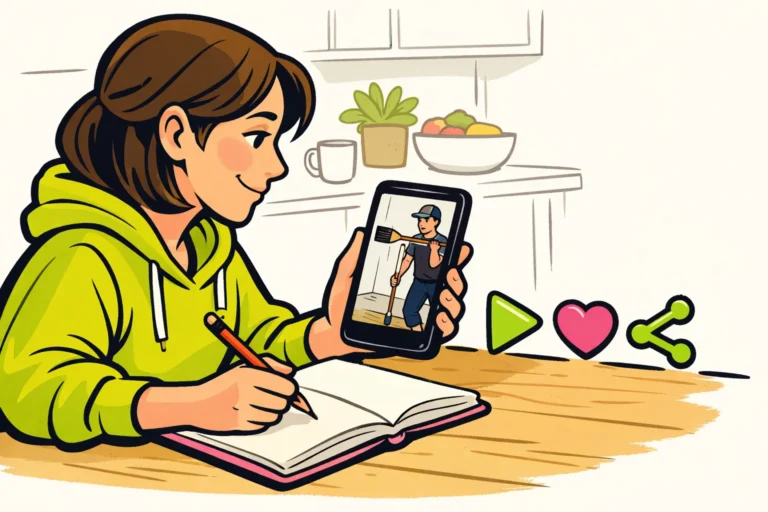
A repost is a recommendation of an existing video. You do not download the video to post it again on your own account.
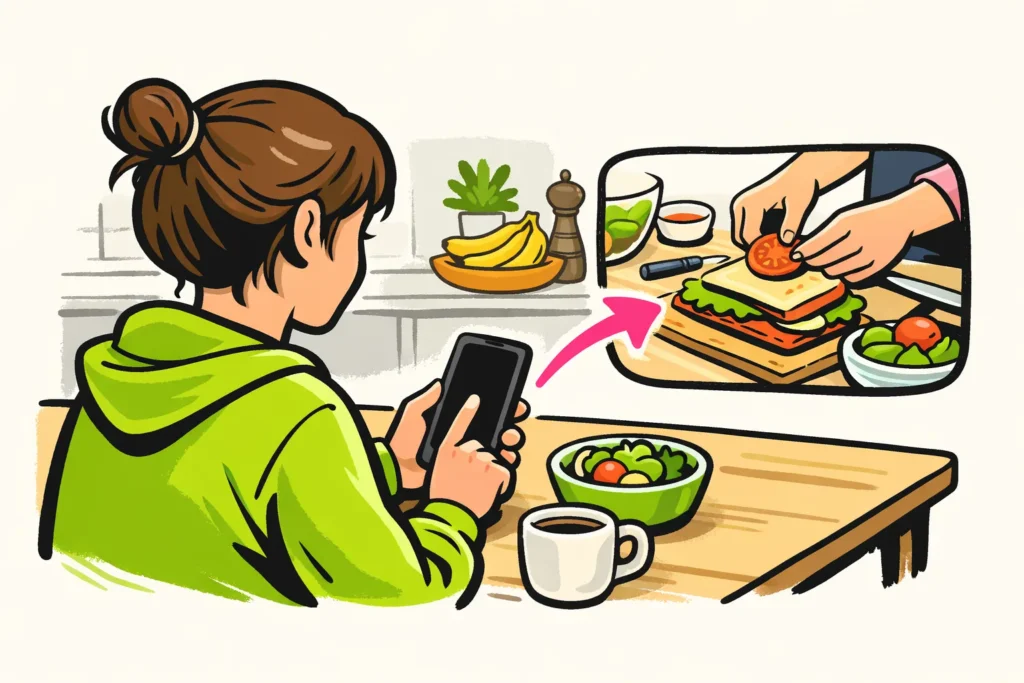
Suppose you see a video with a useful idea for lunch. Want to recommend that idea to others? A repost is suitable. Want to ask your housemate whether you should eat this tomorrow? Send the video in a private message instead.
Not every follower will see your repost. In TikTok’s explanation of the For You feed it states that this stream of videos is tailored to someone’s interests and actions. So do not assume that everyone will see your recommendation.
How do you repost a TikTok video?
- Open the video you want to recommend.
- Tap the share button.
- Choose the repost option.
These steps are described in TikTok’s explanation of reposting and removing reposts. The Dutch button label may differ. Look for a term such as ‘Repost’ or ‘Post again’. These are examples, not fixed button names.
Read the options carefully: reposting is different from sending the video to one person. Do you not see a repost option? Then check the guidance on the missing repost button below.
How do you remove a TikTok repost?
- Open the video you reposted.
- Tap the share button.
- Choose the option to remove your repost.
The exact button label may differ. Look for the action that reverses your repost. This is not the same as deleting a video you posted yourself.
Can’t find the video anymore? First, check your reposts. You can also search for the creator’s name or words from the video, if you still remember them.
Someone may already have seen the video through your repost. Removing the repost does not undo that.
Where can you find your TikTok reposts?
Open your profile and check whether you see a reposts tab. Is it there? Find the video you want to view or whose repost you want to remove there. The layout may differ by account.
Do you not see a reposts tab? That does not mean you have never reposted anything. Try finding the video through the creator or words from the video instead.
Do not use reposts as a private saved list. Want to remember a video just for yourself? Check which saving option you can use and who can see it. You can also note down the link for yourself.
What can you do if the TikTok repost button is missing?
A missing button does not immediately tell you what is wrong. First check whether the button is missing for one video or for several videos.
- Open another video. Tap the share button and compare the options with those of the first video.
- Check whether videos play normally. Does that not work either? Then read the explanation about TikTok without an internet connection.
- Close TikTok and reopen the app. This is a general check for app problems, not a proven solution for a missing repost button.
- Check whether there is an update for TikTok. Even after an update, there is no guarantee that the button will appear.
Does the button remain missing? Note which device and app version you are using. Also write down whether it happens with one or several videos. Include this information when reporting the problem to TikTok.
Do not install an unknown app that promises to make the repost button available.
TikTok reposting, Duet or Stitch: what is the difference?
With a repost, you share the existing video further. With Duet and Stitch, you also create a video yourself. Your choice therefore depends on what you want to add.
| Option | What do you do? | When is it suitable? |
|---|---|---|
| Repost | You recommend an existing video. | You want to share something without filming yourself. |
| Duet | You create a video that appears alongside the original video. | You want to respond or participate at the same time. |
| Stitch | You use a clip from the video and add your own video. | You want to explain something yourself after a short clip. |
Check which options are available for the video. Mainly want to participate in a type of video you see more often? Then read more about recognising TikTok trends and trying them yourself.
What should you consider before reposting a TikTok video?
Watch the entire video and read the description before recommending it. A funny beginning may take on a different message later. Is it news or advice? Also check the date and where the information comes from.
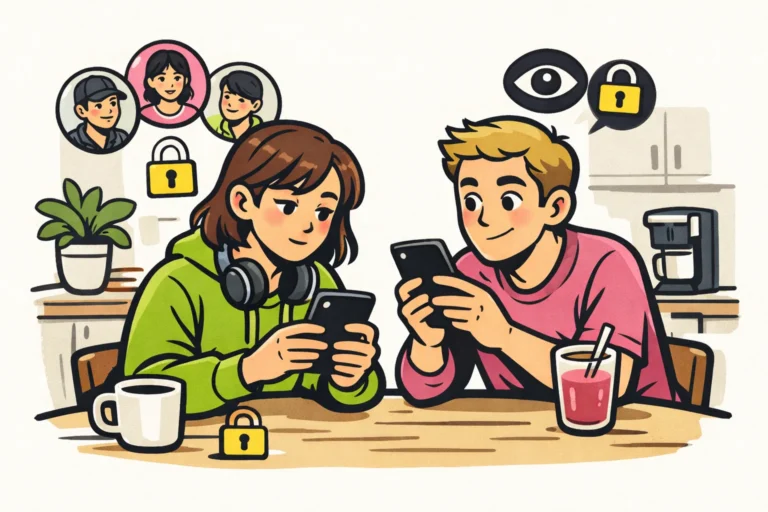
Ask yourself whether you want to recommend this video under your own name. Do not assume that you repost anonymously or that your repost remains private. Exactly who can see it may vary by situation.
Being able to repost a video does not mean that you are also allowed to download, modify or use it in an advertisement. Want to use the footage in another way? Ask for permission and check what you are allowed to do with it. If you are also considering paid options, our TikTok services lets you compare packages for views and followers, including the available quantities and prices.