Optimising your YouTube video starts with what your viewer wants to know or see. Choose one clear topic and align your title, thumbnail and opening footage with it. Put useful information at the top of your description and make your video easy to follow. Start with one existing video. Change one element at a time so you can better compare what happens after your adjustment.
Below, you will read how to approach this, from choosing your topic to comparing your results.
1. Choose one clear topic for your YouTube video
Complete this sentence for yourself: “After this video, the viewer can or knows…” Can’t you do that? First choose which part of your topic you want to show. Taking care of plants is broad, for example. A video about a peace lily that is wilting makes it clearer what the viewer can expect.
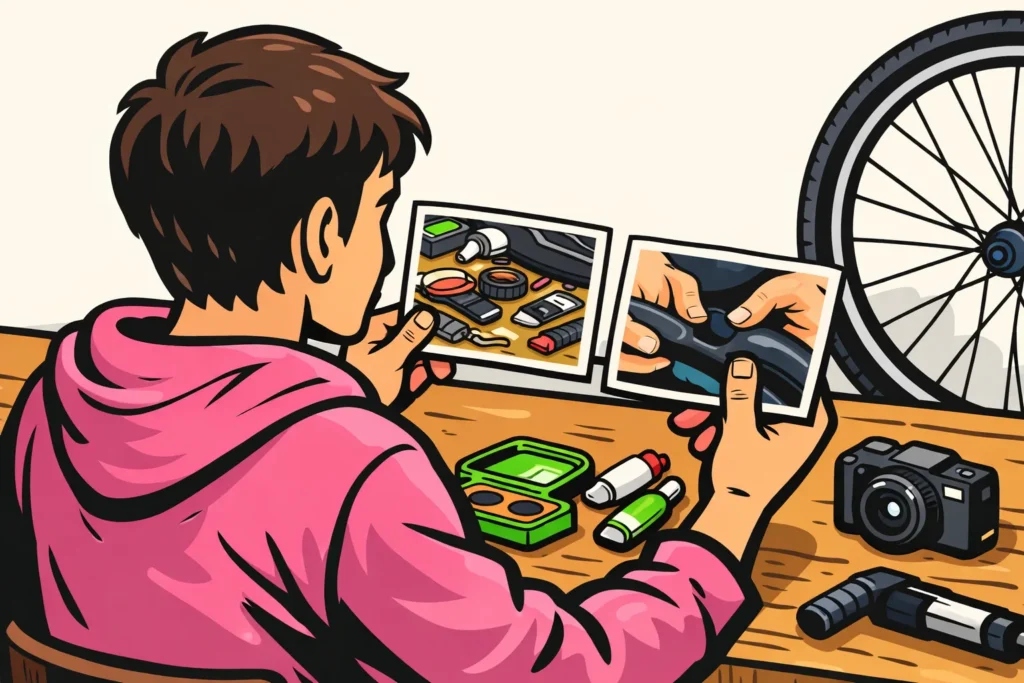
Suppose you are making a video about repairing a bicycle tyre. The viewer mainly wants to know how to find and seal the puncture. Start with that problem, not with a long explanation about your bicycle. We use the fictional video below as an example.
- Write down the question your video answers.
- Check that your footage and explanation really provide the answer.
- Briefly show at the beginning what the viewer will learn or see.
Do you first want to remove unnecessary parts from your footage? Then read how to edit a YouTube video.
Don’t know where to start? YouTube’s basic guide to optimising videos advises giving titles, descriptions and thumbnails attention first.
2. Say in your YouTube title what you are showing
A good title tells people what they will get in your video. Choose words your viewer would use themselves. Put the main topic first if that reads naturally. You do not need to repeat the same search term.
For the fictional video about a bicycle tyre, you could compare these titles:
| Title | What the viewer knows |
|---|---|
| You really need to see this! | Nothing about the topic. |
| Repairing a bicycle tyre: from finding the puncture to inflating it | Which problem you solve and which steps you show. |
| Repairing a bicycle tyre without tyre levers | Which particular approach you show. This title only fits if you really show that approach. |
Make your title precise, but do not promise more than your video shows. For example, do not write that something can be done within two minutes if that is not clear from your video. A question in your title may spark curiosity, as long as your video provides the answer.
3. Create a YouTube thumbnail that matches your title
A thumbnail is the small preview image for your video. Choose an image that quickly shows what the video is about. For the bicycle tyre, for example, show hands near the puncture. That is clearer than an entire shed full of equipment.
Let your title and image complement each other. The title tells people the topic, while the image shows something concrete. The entire title therefore does not need to appear on the image as well.
- Choose one clear subject in the image.
- Make sure it stands out clearly against the background.
- View your design at a small size, such as on a phone.
- Only add text if it explains something and remains easy to read.
- Do not show a result that does not appear in the video.
Would you like to view your image and title together? Also use YouTube’s official tips for thumbnails and titles.
4. Put the key information at the top of your YouTube description
Start your description with what you are showing and who it is useful for. Information about yourself can come below that. Do not make viewers search through a list of links first to find out what the video is about.
For the fictional bicycle tyre video, you could write:
I show how to find and repair a puncture in your bicycle tyre. You will see how to prepare the area, apply the patch and check the tyre again.
Below that, add information related to this video:
- The equipment you use, such as a pump and a repair kit.
- An addition or correction to your explanation.
- Links to something you mention in the video.
- A chapter structure if your video has clear sections.
Include your topic in an ordinary sentence. A string of words such as “repairing a bicycle tyre, repairing a tyre, repairing a flat tyre” does not provide any additional explanation. In YouTube SEO too, making your video easier to find through search, the focus here is on clearly describing what you show.
5. Choose YouTube tags and hashtags that suit your video
Tags are individual keywords associated with your video. Hashtags are words with a hash sign, such as #bikerepair. Spend less time on these than on your title, image and description. Tags and hashtags are not the main solution for low views.
For each word, ask yourself: does someone searching for this get what they expect? If not, leave it out. A popular name or trend unrelated to your video creates the wrong expectation.
For the example video, words about bicycle tyres and repairs are suitable. A hashtag such as #viral says nothing about the content. A long string of almost identical hashtags also adds little.
So choose only words that genuinely relate to your video. This helps you avoid unnecessary repetition and misleading keywords. It is not a guarantee of a higher position in search results.
6. Use chapters and playlists with your YouTube video
Make it easy to find a section again or choose a suitable next video. Chapters, playlists and end screens can help with this.
- Chapters: divide a longer explanation into recognisable sections, such as “Finding the puncture”, “Repairing the tyre” and “Checking the tyre”. Watch your video again and note where each section begins.
- Playlists, also called playlists: group videos about the same topic together. A list about basic bicycle maintenance is clearer than a list mixing all your uploads.
- End screens: offer a suitable next step at the end of your video, if this option is available. For the bicycle tyre video, for example, you could refer to a video about checking your bicycle brakes.
Does your short video have only one topic? Then you do not need to create additional sections. Can’t you use an option? Mention a suitable next video in your explanation and add the link to your description.
7. Compare your YouTube title and thumbnail step by step
First change either your title or your thumbnail. If you change both at the same time, you cannot see which adjustment may have helped. Keep the old version and note your new version with the date of the change.
After that, do not look only at the number of views. The click through rate shows what share of measured impressions resulted in a view. An impression is one time your thumbnail was shown within that measurement. The number of impressions is therefore not the same as the number of different people.
In this fictional calculation example, we count only views that come from the measured impressions. You divide that number of views by the number of impressions and multiply the result by 100.
| Period | Impressions | Views from them | Click through rate |
|---|---|---|---|
| Before the change | 1.000 | 40 | 40 ÷ 1.000 × 100 = 4% |
| After the change | 1.000 | 50 | 50 ÷ 1.000 × 100 = 5% |
The click through rate rises from 4% to 5%. That is an increase of 1 percentage point. This may indicate that your adjustment helps, but it does not prove that the new version always works better. In the second period, different people may have seen your video.
Therefore, preferably compare periods of equal length. Also look at how people reached your video. A period with many viewers coming through search cannot simply be compared with a period in which mostly returning viewers watched.
Also check how long people continue watching and where they stop. Are you getting more clicks, but are people watching for much less time? Then investigate whether your title or image promises more than your video delivers. With few impressions, a few clicks can already change the percentage significantly.
You do not need to delete your video to try a different title or thumbnail. Do you want to remove it for another reason? First read the explanation about deleting a YouTube video.
Now choose one video whose title or image does not yet clearly show what it is about. Adjust that element and note what you want to compare afterwards.